📦 NextDNS Full Setup Guide
If you’re only spoofing short distances (under 15 km), iFlowGo will usually work right away without any extra setup. 🚀
However, if you want to teleport more than 15 km (for example, jumping from Singapore to the U.S.), you’ll need to configure NextDNS on your iPhone. This step is required to fix location restrictions in iOS and ensure your spoofed location updates correctly in Pokémon GO and other apps.
This guide will walk you through the entire process of setting up NextDNS — from basic installation to advanced Wi-Fi spoofing fixes — so you can spoof smoothly anywhere in the world. 🌍
This guide will walk you through how to configure NextDNS on your iPhone, including detailed steps for Wi-Fi spoofing and DNS settings. It’s primarily designed to fix location issues with iFlowGo in certain network environments but can also serve as a general-purpose NextDNS setup reference.
¶ Part 1: Basic NextDNS Configuration
¶ Step 1: Download and Install the NextDNS App
- Download the App
- Open the App Store
- Search for “NextDNS”
- Tap Install
- Initial Setup
- Open the NextDNS app
- Tap “Get Started”
- Create or log in to your NextDNS account
¶ Step 2: Configure NextDNS in Your Browser
1. Visit the Website
- Go to: https://my.nextdns.io/
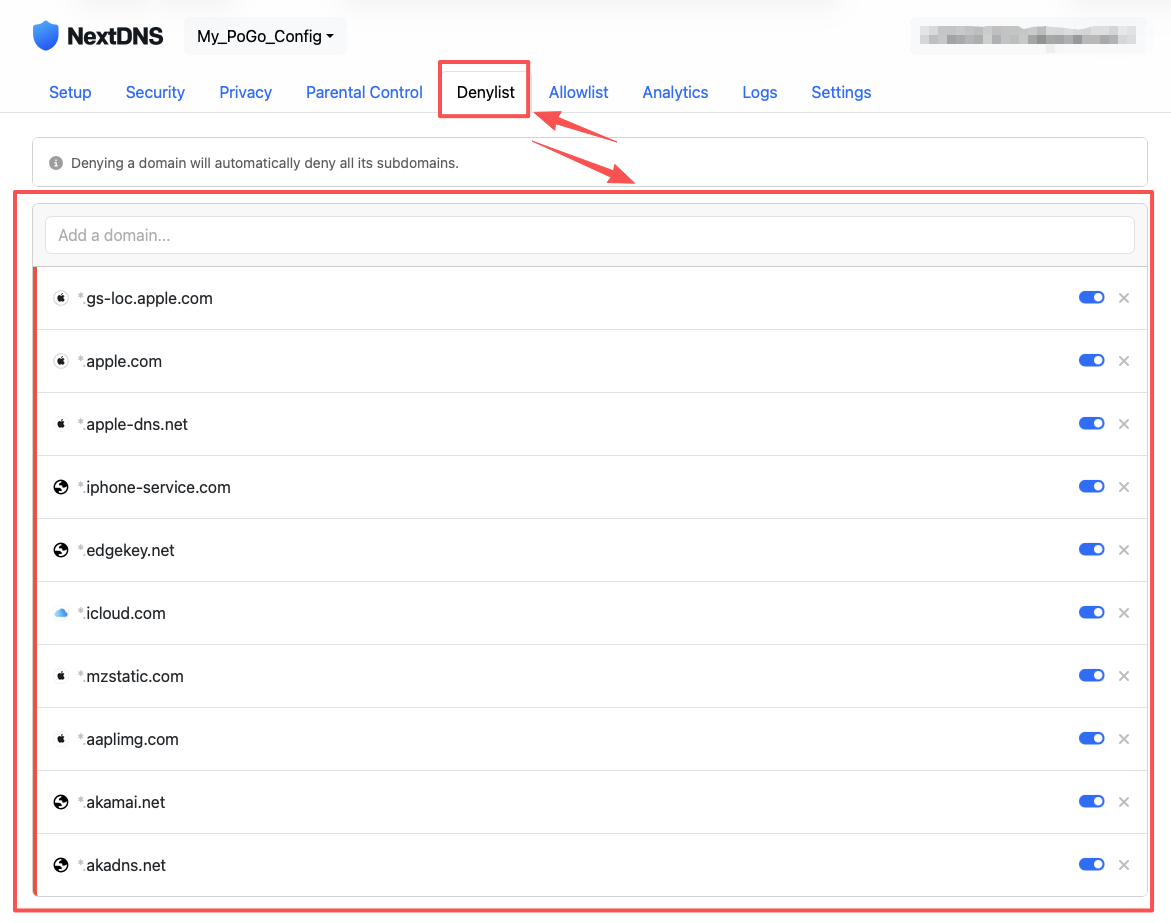
2. Denylist Domains
- Under Denylist, add the following Apple domains to the allowlist:

3. Get Your Configuration ID
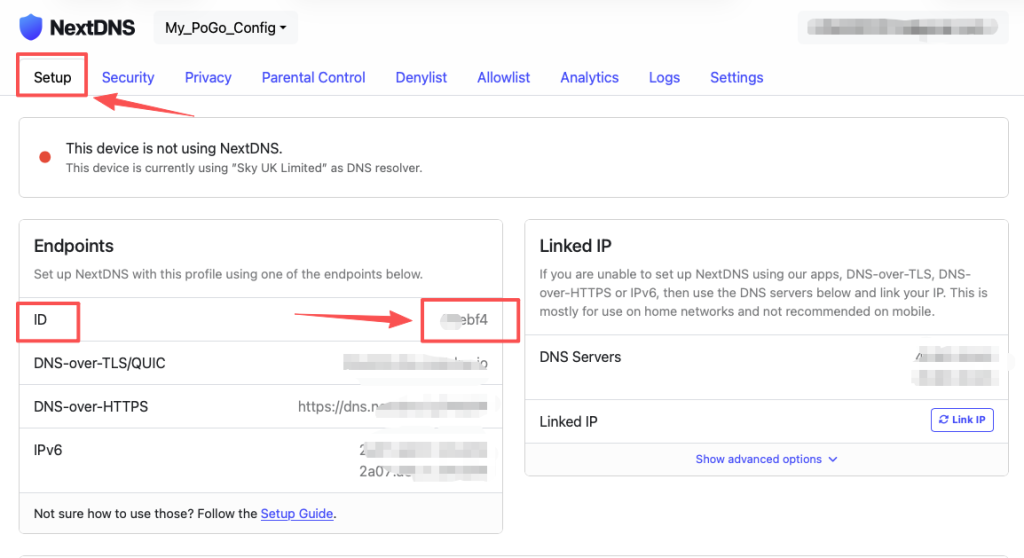
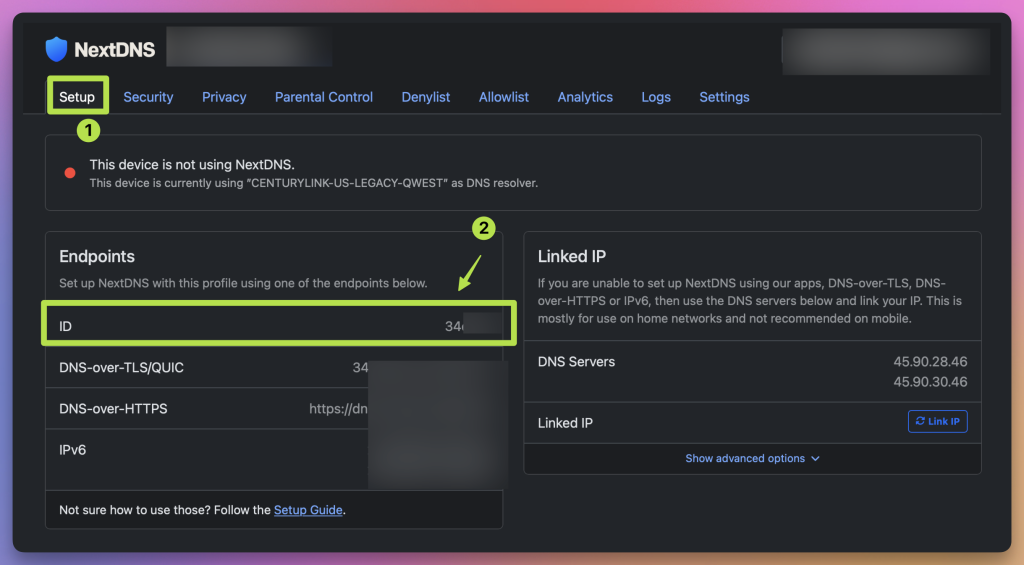
- Navigate to the “Setup” page
- Copy your Configuration ID (e.g.,
9c1c6f)
¶ Step 3: Configure DNS on Your iPhone
1. Enable DNS
- Open Settings on your iPhone
- Go to General > VPN & Device Management > DNS
- Select NextDNS

2. Apply Settings
- Open the NextDNS app
- Enable NextDNS
- Paste your Configuration ID

¶ Part 2: Advanced Wi-Fi Spoofing Configuration
¶ Step 4: Set Up Virtual Location
1. Simulate the Target Location
- Launch your virtual location tool
- Set your desired iOS location
- Confirm the map displays the correct coordinates

2. Network Connection Test
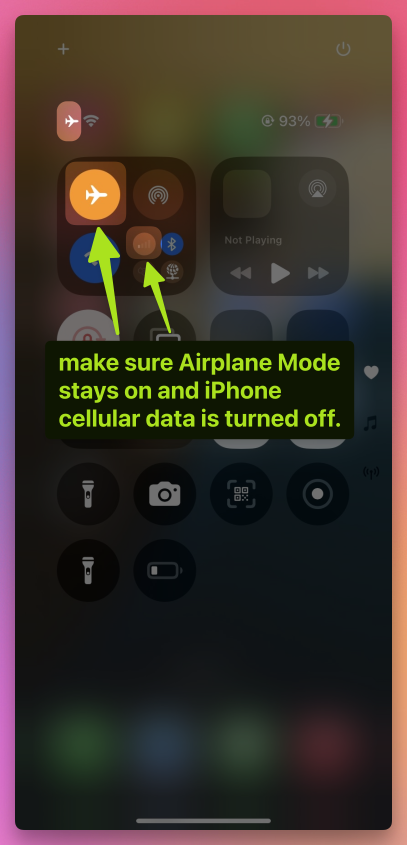
- Make sure Airplane Mode stays on and iPhone cellular data is turned off.
- Make sure Wi-Fi and NextDNS are active
- Test to ensure internet connectivity is working
3. Advanced Troubleshooting: Reset Location Services( (Important — follow these steps if you can’t change your location)
Make sure Airplane Mode stays on and iPhone cellular data is turned off.
- 1. Open Settings > Privacy & Security > Location Services
- 2. Turn off Location Services
- 3. Turn off Wi-Fi and Cellular Data
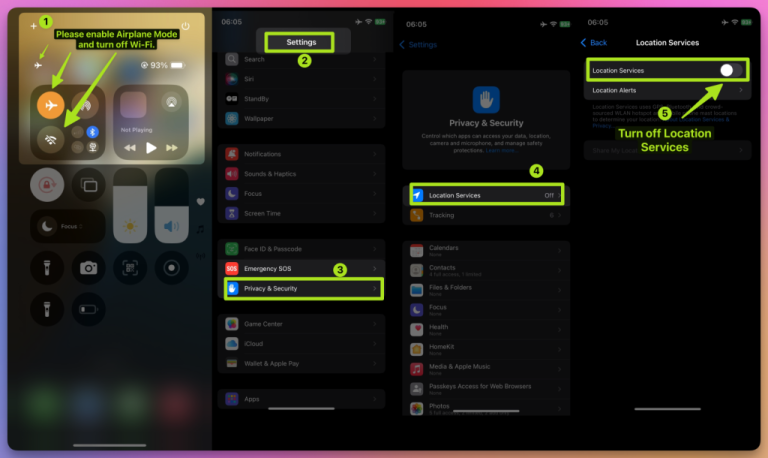
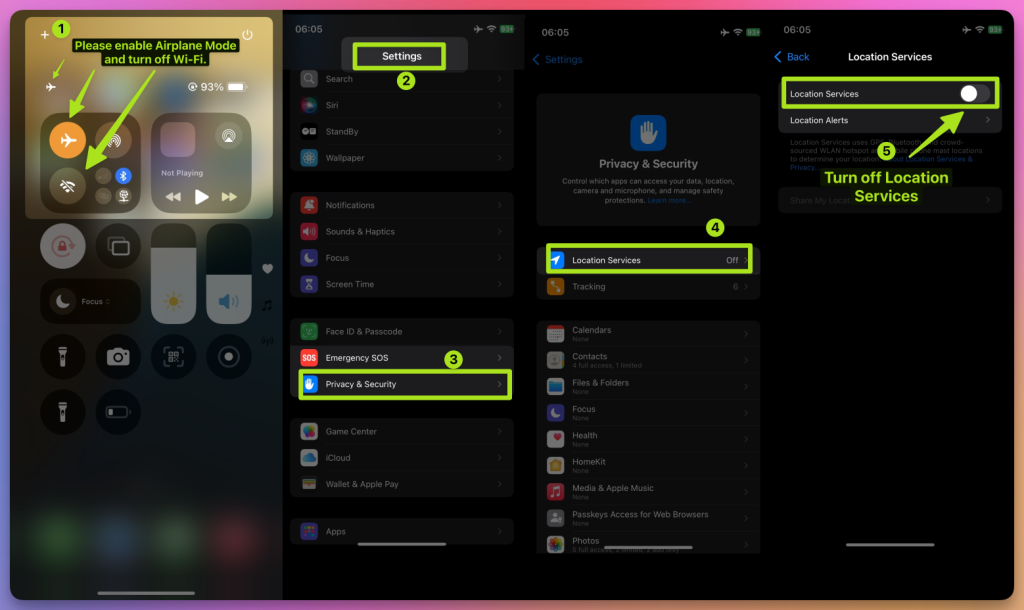
4. Wait 10 seconds
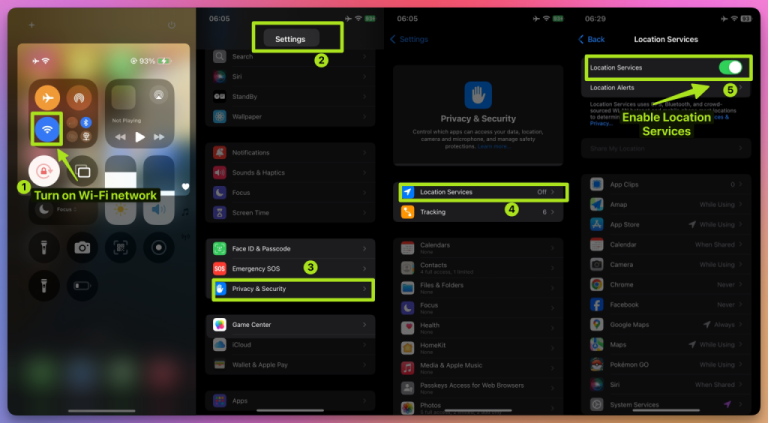
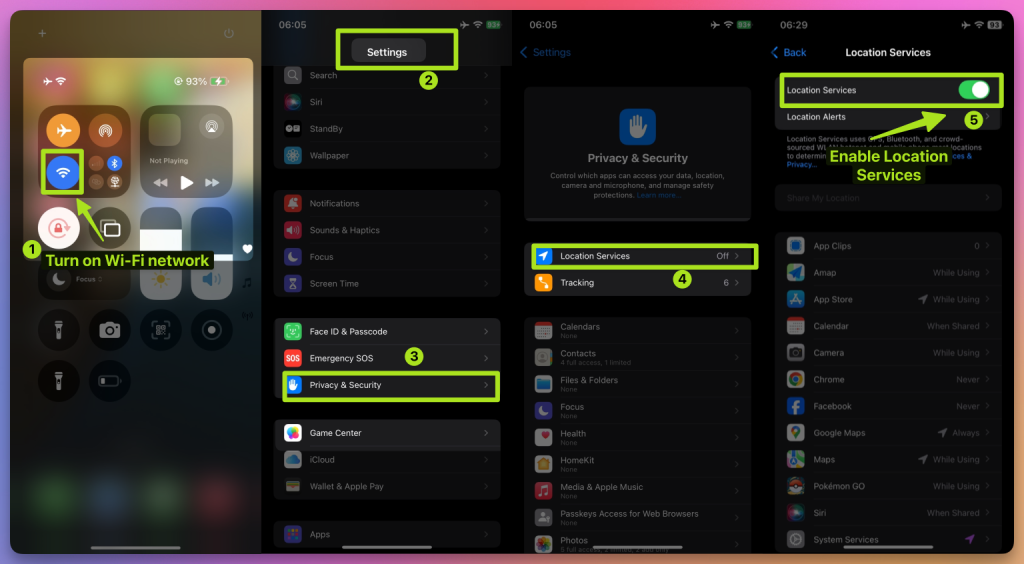
5. Turn on Wi-Fi network
6. Go back to Privacy & Security > Location Services, enable Location Services
¶ Part 3: Game Launch & Final Setup
¶ Step 5: Launch the Game App
- Start Pokémon GO
- Ensure all setup steps are completed
- Open Pokémon GO
- Log into your account
- Check Your Location
- Make sure the map loads properly
- Your avatar should appear at the virtual location you set
- Try walking or moving around within the spoofed area
¶ 🛠 Troubleshooting Tips
- During the spoofing process, please keep Airplane Mode enabled and cellular data turned off on your iPhone.
¶ 1. DNS Not Working
- Confirm DNS is enabled in network settings
- Double-check the Configuration ID
- Make sure Transport Layer Encryption is turned on
¶ 2. Location Still Not Working
- Verify that Apple domains are added to the Denylist whitelist
- Ensure network settings are correctly applied
- Check that your virtual location tool is running
¶ 3. Game Not Updating Location
- Both network and location settings must be stable
- Log out and back into Pokémon GO
- Check if the Wi-Fi settings are correct
¶ ✅ Final Configuration Checklist
- NextDNS app installed and configured
- Configuration ID copied and pasted correctly
- Apple domains added to Denylist whitelist
- DNS enabled on iOS
- Stable Wi-Fi connection
- Pokémon GO avatar appears at correct location
🎉 Setup Complete! Enjoy your game and happy spoofing with accurate location settings!